Data Views
For what a data view is, where it applies, and how its rules are evaluated, see Data Views concept first. This page covers the console screen itself: creating, editing, and assigning a view.
Who can see this page
Data Views is Administrator-only. The sidebar hides it for anyone else, and the API enforces the same restriction. This feature allows you to create named tag-scoped rule sets and assign them to users. That user will only be able to see and access that set of tags. Assign a view to a user under Users & Access to narrow the OPC-UA data they see.
Reading the view list
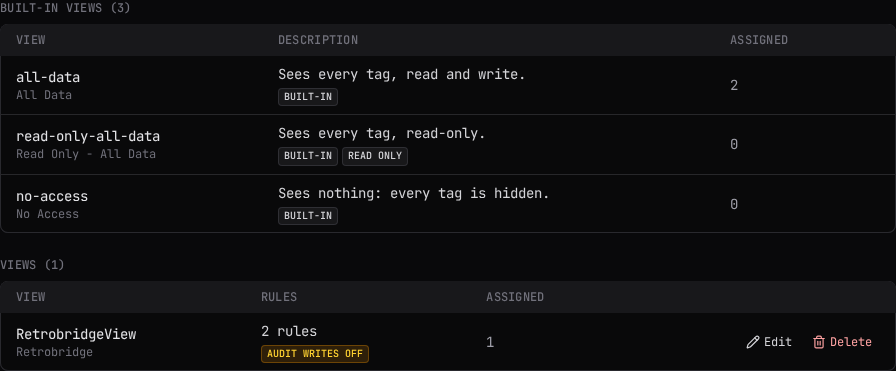
Views are listed in two groups: Built-in views, which are never editable or deletable, and your own Views. Each row shows the view's id and optional name, its rule count (or, for a built-in view, its fixed description), and how many users it is assigned to. A view carries a Read only chip when it grants no write permission, a Parked chip when it is configured but out of force, and an amber Audit writes OFF chip when successful writes into its tags are excluded from a filtered data-write audit scope.
Creating or editing a view
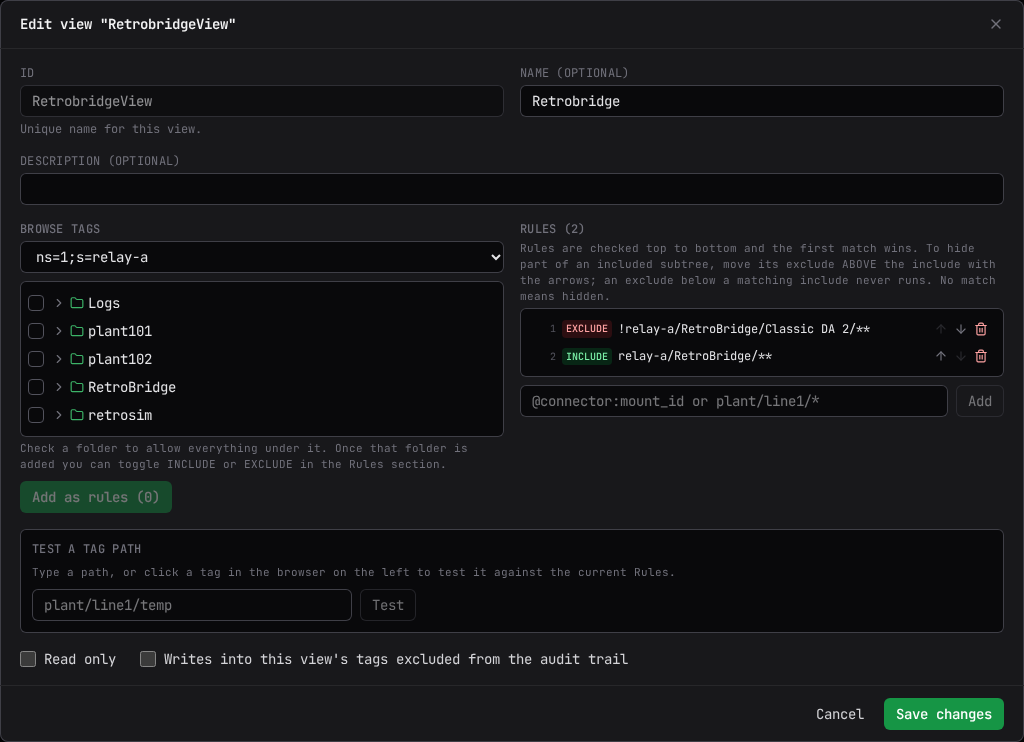
Select New view, or Edit on an existing custom view. The editor has:
| Field | What it does |
|---|---|
| ID | A unique, permanent name for the view. Locked once you are editing an existing view. |
| Name | An optional display label. |
| Description | An optional longer description. |
| Read only | Makes the view contribute visibility only, never write permission. |
| "Audit writes (default)" | On by default. Turning it off excludes this view's tags from the data-write audit chain when that chain runs a filtered scope; refused, failed, aborted, and clamped writes are always recorded regardless. This should be used for human accounts only. See The Audit Chain for more information. |
Below those sits the rule builder. Select Save changes (or Create view) to commit; the confirm dialog summarizes the rule count and repeats the audit-writes warning when it is off.
The rule builder
The rule builder has two panes and a tester underneath.
Browse tags, on the left, lets you pick a connection and walk its tree. Check a folder to
allow everything beneath it, or a tag for that exact tag, then select Add as rules to append
your picks to the rule list on the right. A checked folder becomes a subtree rule
(plant/line1/**); a checked tag becomes its exact path.
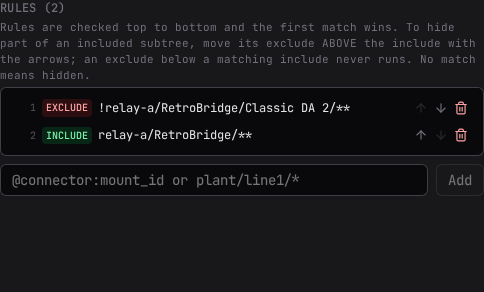
Rules, on the right, is the ordered list the view actually saves. Each rule shows an
include or exclude chip you can select to flip it, up and down arrows to reorder it, and
a remove button. You can also type a rule directly (for example plant/line1/*) and select
Add. Rules are evaluated top to bottom, and the first match decides a tag; move an exclude
above the include it needs to override, since an exclude placed after a matching include never
runs.
A connector rule never narrows tags
A rule of the form @connector:<id> is accepted here, but it never matches an individual tag
once the view is enforced: enforcement matches on tag path only. An exclusion written this
way hides nothing, and an include written this way makes folders visible but no tags. Write
rules as tag paths instead. See
Data Views for the full rule syntax, including why
partial wildcards and quality selectors are refused.
Test a tag path, below both panes, evaluates the rule list exactly as you have it right now, including anything not yet saved. Type a path, or select a tag in the browser to test it in one step. The result shows Allowed or Hidden and names the rule that decided it, highlighted in the list above.
Assigning a view
A view is not assigned from this page. Attach it to a user account on Users & Access; see Data Views for how an assignment takes effect, including that Administrators are always exempt and that a scoped user's every assigned view together decides what they see.
Deleting a view
Select Delete on a custom view's row. If the view is still assigned to one or more users, the node refuses the deletion and names them; unassign it first.
When writes are disabled
If config writes are turned off on this node, the page shows: "Config writes are disabled on
this node. Set management.allow_writes: true to create, edit or delete views. This page is
read-only." The view list still displays; only New view, Edit, and Delete are
hidden.
Related
- Data Views: the full model, including built-in views, scope, and what a scoped user experiences.
- Users & Access: assigning a view to a user.
- The Audit Chain: what a filtered data-write scope records.