Troubleshooting
What this page covers
Troubleshooting is the single place to see issues across the whole chain, each node's health, and its recent logs. Fix an issue on the page that owns it, or download a node's logs to share. Select Refresh to re-check everything at once.
Possible issues
A table of detected problems, most severe first: Severity (critical, warning or info), Node, What, and Fix. When nothing is wrong it reads "No issues detected across N node(s)." At most 200 rows are shown; if there are more, a row states how many are hidden.
Every issue's Fix button opens the page that owns it (Connections, Data Routing or Dashboard), with the affected node made active first. Some issues also offer a second action that resolves the problem in place, each behind a confirmation:
| Action | What it does |
|---|---|
| Restart | Restarts the node. "Data flowing through this node will stop while it restarts." |
| Reset errors | Clears a route's write-error counter. "It does not retry the writes that already failed - only a NEW failure will show up again." |
| Refresh mapping | Removes and re-adds one mapping's live items - a fresh subscription and a fresh destination probe - to un-stick an item whose error is not clearing on its own. |
A failed action is reported as "Action failed: <message>" beneath the table.

Node health
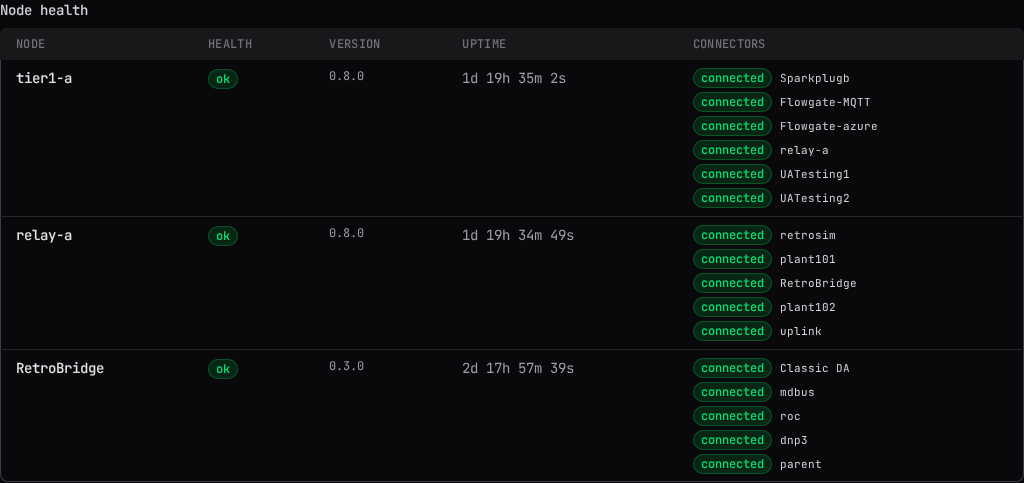
A table of every node in the chain: Node, Health, Version, Uptime, and Connectors, each connector or uplink shown with its own status. A node that cannot be reached reads unreachable; one running a build that predates this check reads not supported by this node version.
Logs
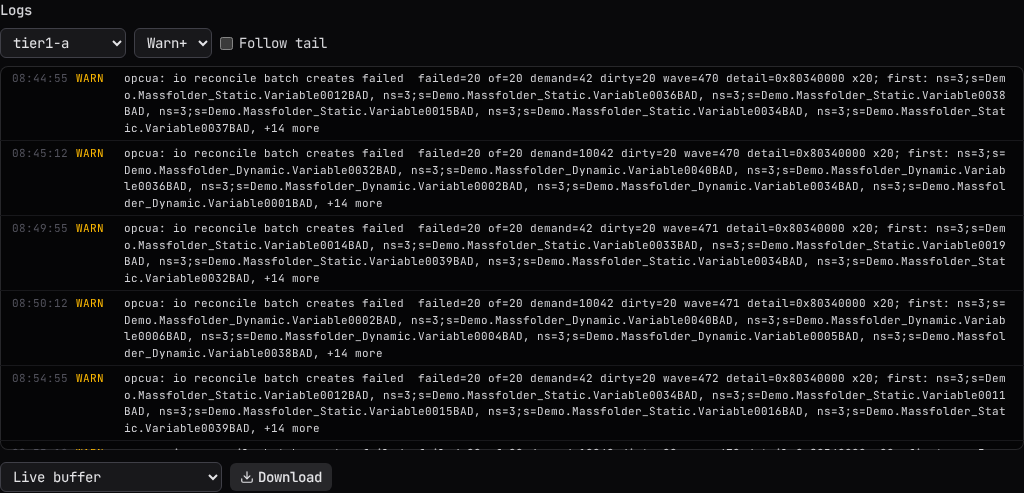
Choose a Node and a minimum Level (All, Info+, Warn+, the default, or Error); check Follow tail to keep the view scrolled to the newest line as it arrives. Each line shows its time, level and message; a marker reading "older records were dropped from the buffer" appears where a gap opened between polls.
Level filters the view, not what is kept
The buffer's own capacity, its on-disk rotation, and log-storm suppression are node configuration, not something this page controls; see Settings.
Reading logs requires an Engineer role on that node.
Downloading logs and on-disk log files
Below the log view, choose a Download source: Live buffer, or one of the node's on-disk log files, listed as the current file with its size or a backup with when it was written. Select Download to save it.
A download always carries everything
The Level filter narrows only what you see on screen. Downloading the live buffer captures every level currently held, and downloading a file captures it exactly as stored on the node.
The live buffer is not the full picture
The live buffer does not carry all the information the on-disk log files do. It is a single in-memory bound (1 to 1024 MiB, configured on Settings) that starts empty every time the node restarts, so a crash or a restart drops whatever it held. The on-disk files rotate on both a size cap (1 to 64 MiB per file) and every restart, and up to 20 backups are kept, so together they hold far more total history and preserve exactly the boundary a restart or a crash leaves behind - the record the live buffer just lost. Both legs are fed the same log lines, so what differs between them is how much history survives, not what is recorded in it.
If on-disk log file capture is degraded on this node, a note appears beneath the download controls naming it, and the file list offered may be shorter than expected.