Connections
What this page shows
Connections lists the connection configuration every node in the chain makes: protocol connectors and OPC-UA sources, one section per node, this node first, then each manageable node below it, fetched over the reverse-connect channel.
A local change applies live. A change on a downstream node is pushed over its reverse-connect admin channel and applied there. A node's section is editable only when you hold Engineer or higher on that node and the node has opted in to remote configuration; otherwise it renders read-only, marked read-only beside its name.
Each node's section can carry, top to bottom: Federation Uplinks, Connectors, a Store & forward switch, and Store & Forward Receivers or Store & Forward Uplinks.
Adding a connection
Select New Connector in a node's Connectors section, then work through the wizard:
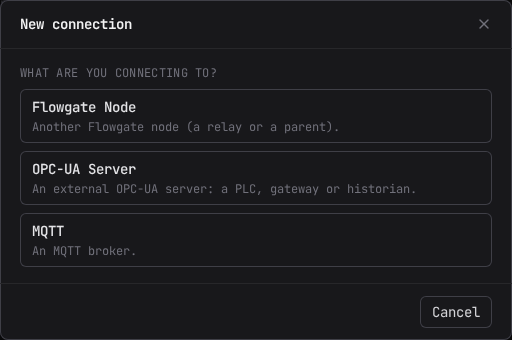
- Choose what you are connecting to: Flowgate Node, OPC-UA Server, MQTT, or another type the node itself advertises (for example a Modbus device), which renders its own form.
- For a Flowgate Node or an OPC-UA Server, answer How is the connection established?
The other end dials out to this node. Preferred for a Flowgate Node: "The downstream node dials out to us, so the OT network never needs an inbound firewall rule." For an OPC-UA Server it reads "The server dials out to us over reverse connect."
This node dials out to the other end instead. For a Flowgate Node: "This node dials out to the other end's endpoint. Use this only when the other end cannot dial in." For an OPC-UA Server it is the ordinary case: "This node dials out to the server's endpoint."
- For MQTT, choose Publish or Subscribe, then Sparkplug B or JSON. A Publish connector sends this node's data outward; a Subscribe connector reads a broker's topics in.
Every connection type shares a security policy, security mode, and authentication mode (anonymous, username, or certificate) where the transport is a TCP link. Select Discover security against a typed endpoint to see the policies and modes that server actually offers, rather than picking blind.
Register and point maps
Some connection types carry a table, such as a Modbus device's register map or a ROC device's point map. The form doesn't show the table itself. It shows how many rows the table has and a Configure … button named after the table, for example Configure Register Map. When a cell needs fixing, the form also says how many, and Create or Save stays unavailable until they're fixed. A column the node marks as unique flags every row that shares a value, and Create or Save stays unavailable until each is fixed. A panel you cannot edit shows View followed by the table's name (for example View Register Map) and offers Export CSV only.
The editor lists the key columns of each row, which you can edit in place. Select a row to show and edit the rest of its settings. A red number on a collapsed row counts the problems hidden in those settings.
- Add row adds a row with the table's defaults at the bottom, collapsed, ready to type its first key column. Select it to edit the rest of its settings.
- Export CSV downloads the table. The header line holds the column names (for example
browse_path, not the label Path). Export writes a leading apostrophe before a cell that starts with=,+,-or@, so a negative number such as a scale of -0.5 appears as'-0.5. Spreadsheets would otherwise treat such a cell as a formula. - Import CSV replaces the whole table with the file's rows, and removes that one leading
apostrophe again. An empty cell means the value is
not set. On/off columns accept
true/false,yes/noor1/0. A header that matches no column is reported and ignored, and a column the file doesn't carry is reported and left unset.
Done keeps the edits in the form, and they are saved with the connection when you select Create or Save. Cancel or Esc discards everything done in the editor, including an import, after asking you to confirm.
If creating a connection succeeds but saving its device configuration fails, the connection exists and the form stays open with the error at the top. The button then reads Save configuration, and it re-sends only the configuration to that connection.
Reading and editing a connection card
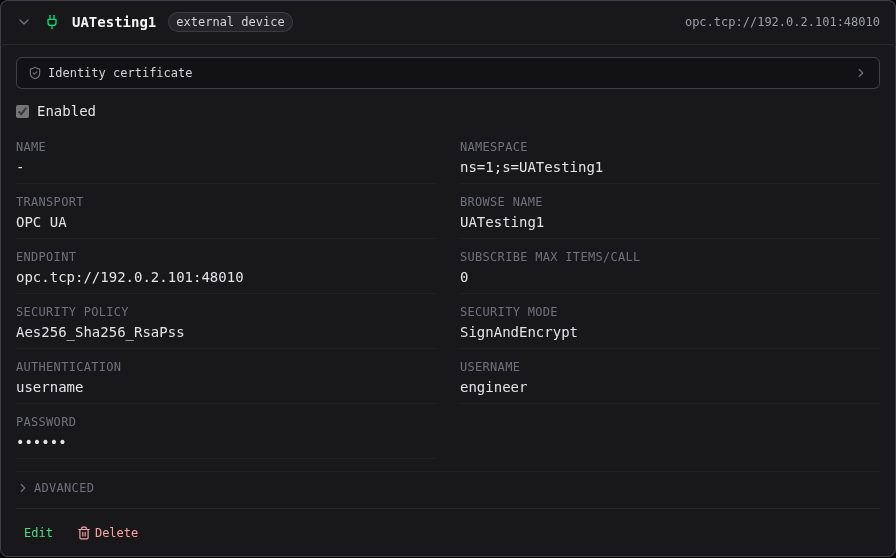
Select a connection's collapsed row to expand it. Each card shows its live configuration; select Edit to change it, then Save or Cancel. A card's own error, when it has one, appears with a short hint and the raw error text under Raw error.
An OPC-UA connection (a mount) also shows an Identity certificate panel: the certificate this node presents as its client identity to the far end. Select Download PEM to trust it on the downstream server's own user-certificate store.
Renaming a connection changes its identity
Changing a mount's browse name is a rename, not a plain edit: the connection's NodeId changes, and every data route, view, or role scope on this node that references it is rewritten automatically. Role scopes on parent nodes that reference it are not rewritten and must be updated by hand. External OPC-UA clients and historians using the old NodeId or old tag paths must re-resolve. The confirm dialog lists any data routes that reference the connection before you commit.
Deleting a connection tears down its link live. A data route that references a deleted connection stays in place, stops working, and recovers automatically if a connection with the same id is created again.
Advanced settings
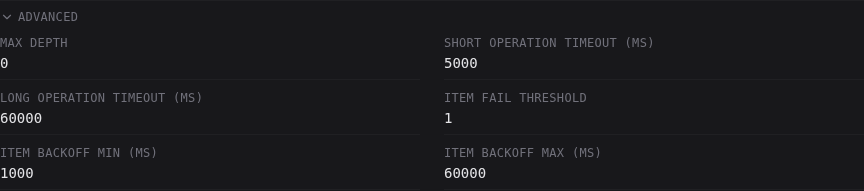
Select Advanced on an expanded card to reach the connection's tuning settings. The section
starts closed because every setting in it has a working default, and 0 in any of these fields
means "use that default" rather than a literal zero.
All six apply live. Saving one retunes the running connection with no reconnect, so the device is not interrupted.
| Setting | What it does | Default |
|---|---|---|
| Max depth | How many levels deep this connection's address space is browsed. | 0 (no cap) |
| Short operation timeout (ms) | Timeout for reads, writes, and subscribe calls on this link. | 5000 |
| Long operation timeout (ms) | Timeout for browse calls, which can take much longer on a large address space. | 60000 |
| Item Fail Threshold | How many consecutive rejections park a tag (see below). | 1 |
| Item Backoff Min (ms) | How long a tag waits before its first retry after parking. | 1000 |
| Item Backoff Max (ms) | The longest a parked tag ever waits between retries. | 60000 |
The two operation timeouts apply to every OPC-UA connection this node dials or accepts. They are not shown for a connection to a DA server or a device driver, because neither has a network operation of its own to bound.
The item settings control what happens when this connection asks its device for a tag and the device answers that it does not have it. That normally means the address space changed underneath you: a tag was renamed or removed, or a program was reloaded with a different layout. Retrying such a tag on every cycle is wasted work, and at scale it crowds out the tags that are still there, so Flowgate parks it instead and retries it on a slowing schedule.
A parked tag waits Item Backoff Min, then twice that, then twice again, up to Item Backoff Max. With the defaults that is one second, then two, four, eight, and so on to a minute, and once at the ceiling it retries once a minute for as long as the tag stays missing. Nothing is given up on: a tag that comes back is picked up on its next retry, and reconnecting the connection clears every parked tag immediately so recovery after an outage is never delayed.
Item Fail Threshold is how many rejections in a row it takes to park a tag. The default of 1 parks on the first one, which is deliberate: this class of rejection does not heal on its own, so retrying before parking only repeats work that is known to fail. Raise it if a device rejects tags briefly during a reload and you would rather Flowgate keep trying for a cycle or two.
Federation uplinks
A federation uplink is this node's own outbound reverse-connect link up to a parent Flowgate
node. Select Add Reverse Connect Uplink, give the uplink an id, and set its Parent URL to
the parent's reverse-connect client endpoint, for example opc.tcp://parent.example.com:17071.
The node dials out immediately, live, with no restart.
An uplink card shows its Parent URL, App URI, and, once connected, the security policy, security mode, and authentication the parent actually accepted, read-only: the parent's own reverse-connect mount configures those; this node only reports what it was given. A connected uplink to a designated Flowgate peer is labeled Federation; anything else, including a link that has not connected yet, is labeled UA Reverse Connect.
Select Export certificate on the local node's Federation Uplinks section to download this node's own server certificate, for a downstream client to trust ahead of time.
Changing an uplink's Parent URL re-dials the new parent immediately. Changing only its Name applies live without touching the link itself.

Protocol connectors
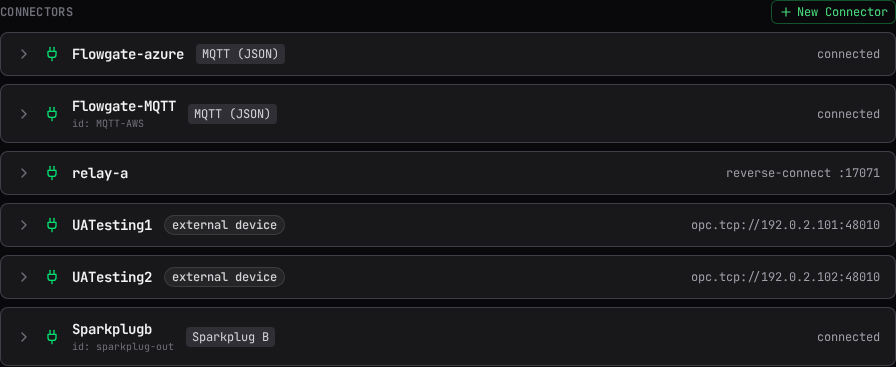
A protocol connector moves data over MQTT, Sparkplug B, or another non-OPC-UA protocol. Its collapsed row shows its status and id, plus applies on restart when a change to it will not take effect until the node restarts; an OPC-UA-family connection needs a restart to reconnect or stop, while most protocol connectors reconnect live. Select Enable or Disable to turn a connector on or off without deleting its configuration; the confirm dialog states whether that particular change applies live or on restart.
The store and forward master switch
Store & forward is one switch for the whole node, shown above the receiver and uplink cards. It appears on every node you can configure, and on any other node that has receivers or uplinks. Turning it off turns off durable buffering everywhere on that node; turning it on does not by itself buffer anything until at least one receiver or uplink, and a data route with Store & forward enabled, exist. See Store and Forward for how the whole path fits together.

Store and forward receivers
Shown on every node you can configure, and on any other node that has receivers. Select New receiver to create a named durable buffer that accepts
incoming pushes: give it a Name (lowercase letters and digits, with - or _ between
them), and optionally Max size (MiB), Min disk free (MiB), and When full (discard
oldest, or block). Creating a receiver applies on restart.
A node can hold several receivers, and that is how separate store and forward streams are kept apart: an egress delivers everything its receiver accepts, so data bound for different destinations belongs in different receivers. A stream lands in a specific receiver when the sending node's uplink names it as its Target receiver. See Separate store and forward streams for the whole pattern.
Each receiver card shows its Backlog, Ingest rate, and how many Egresses (outbound destinations) it has. Select Edit to change its name or storage sizing; renaming moves its durable file to match. Storage and rename changes apply on restart, and the confirm dialog warns that a node still pushing to the old name holds its data until you repoint it, without losing anything.
Deleting a receiver is disabled while it still has egresses attached. Deleting removes it from the configuration; its durable file stays on disk unless you also check Also permanently delete the receiver's durable file, which requires the Administrator role and cannot be undone.

Store and forward uplinks
Shown on every node you can configure, and on any other node that has uplinks. Select New uplink to create a named durable push destination: an
Id, an Endpoint (the receiving node's ordinary OPC-UA endpoint, not its reverse-connect
port, for example opc.tcp://tier1.example.com:17070), an optional Target receiver, Push
authentication, and spool sizing (Max size (MiB), Min disk free (MiB), When full,
Compression). Creating an uplink applies on restart.
A node can hold up to 8 uplinks, and each is a separate durable stream with its own spool and its own backlog: a stalled or slow destination fills that uplink's spool and no other.
Target receiver names which of the receiving node's receivers this uplink's pushes land in; leave it blank for the receiving node's default receiver. Every data route riding the uplink lands there, and a route cannot override it: to land a route's data in a different receiver, create another uplink targeting that receiver and put the route on it.
A target receiver the far node does not have stalls the uplink
Receiver names are validated by the receiving node, at push time. A name it does not have
holds every push unsent: nothing is lost, but the uplink's backlog reads stalled and its
spool fills while the condition lasts. The receiving node's diagnostics count the refused
pushes and show the receiver names that were asked for, which is how a misspelled name is
found from that end.
Each uplink card shows Pending records and Selected tags: zero selected tags means nothing will spool through it yet. Nothing rides an uplink until a data route on the Data Routing page designates it. Editing an uplink's settings, and deleting it, both apply on restart; a deleted uplink's spool file is left on disk.

Trusting a downstream certificate
When a secure OPC-UA mount's far end offers a certificate this node does not yet trust, the card shows the offered certificate's subject and thumbprint with Trust and Reject buttons. Trust adds it to this node's trust store and reconnects the link. Reject refuses it and leaves the connection down.
Compare the thumbprint before you trust it
Trusting the wrong certificate means this node authenticates an impostor for as long as the entry stands. Compare the shown thumbprint against the far end before accepting it.
When writes are disabled
If config writes are turned off on this node, the page shows: "Config writes are disabled. Set
management.allow_writes: true (loopback bind, or allow_remote_writes) to edit connections.
This view is read-only." Every card on the page still shows its live configuration; only the
editing controls are hidden.
Related
- Chaining and Reverse Connect: how a link is set up from both ends, and what a connected client sees.
- Store and Forward: what a receiver, an uplink, and the data route flag do together.
- Data Routing: designating which tags move, and over which store-and-forward uplink.