Dashboard
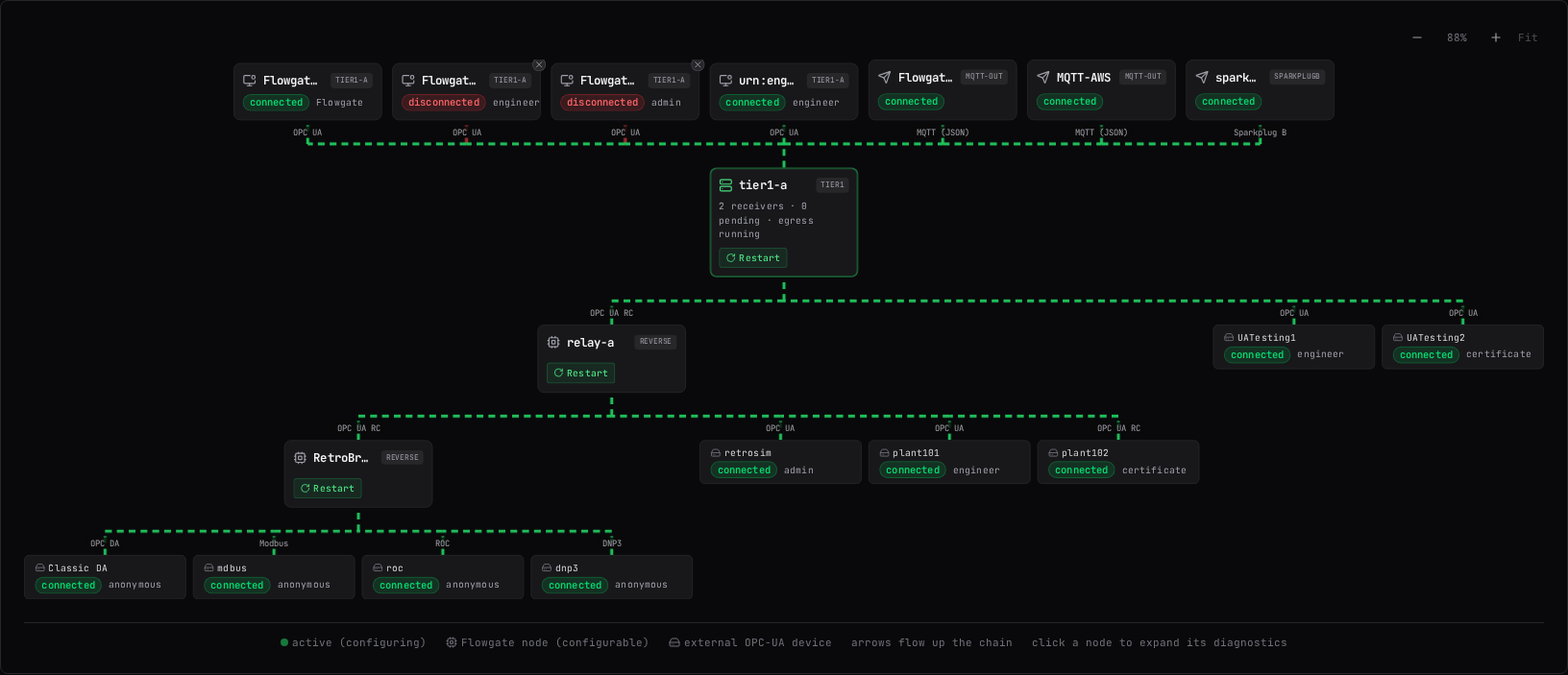
The Dashboard draws the configured architecture as a live diagram: the node this console is connected to, every node chained below it to any depth, and the consumers above it. Everything on the page refreshes automatically (every 5 seconds unless you change the interval on the Settings page; the setting belongs to this browser). The "Refresh" button forces an immediate update of everything except client sessions on downstream nodes, which keep refreshing on their own timer at the same interval. If the node cannot be reached, a banner starting with "Could not reach the node" appears at the top.
Reading the diagram
The connected node sits at the top of the chain. Its downstream nodes hang below it, each with its own data sources below that, to the full depth of the chain. Arrows flow up the chain, in the direction the data moves.
Above the connected node sit the consumers of its data: outbound connectors (for example Sparkplug B, MQTT, or REST) and inbound OPC UA client sessions. A client that reads from a downstream node appears above that node instead.
Each pipe is coloured by the live health of that one connection. Green with a moving dash means connected and flowing. Amber means connecting or degraded. Red means disconnected or in error. A solid grey pipe is a connection that was deliberately stopped; a faint grey pipe means the status is not known. Only a healthy link animates. Each client box shows a status pill and the user the session authenticated as, or "anonymous".
The legend below the diagram summarizes the symbols: a processor icon is a Flowgate node you can configure, a drive icon is an external OPC-UA device, and the highlighted box marked "active (configuring)" is the node your changes on other pages apply to. To configure a different node, use the "Configuring" picker in the title bar; clicking a box does not switch nodes.
Connection diagnostics
Click any box to expand its diagnostics in place. One box is expanded at a time; clicking anywhere else collapses it.
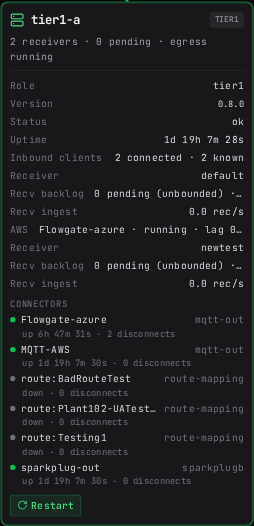
What you see depends on the box:
- A node shows its store-and-forward summary, version, status, uptime, inbound client count, uplink state, store-and-forward state, and its connector list.
- A downstream node also shows the link from its parent: endpoint, transport, link status, link uptime, and the number of disconnects observed since the parent started. Its version is read over reverse-connect while the box is open. An amber "restart pending on this node" line means a configuration change on that node is waiting for a restart.
- A client session shows the user, the node it is connected to, uptime, disconnects, and when it was first and last seen.
- A data source shows its status, the user it authenticates with, transport, uptime, disconnects, and its non-secret settings.
If a downstream node's link is up but its details show "Config unreachable over RC: Designate the certificate as a flowgate node to allow remote configuration", the node is connected but not yet trusted for remote management. Designate its certificate on the Certificate Management page.
Zoom
The diagram scales itself to fit the width of the panel, and never above full size. A very deep chain stops shrinking at half size and scrolls sideways instead, so the labels stay readable. Use the plus and minus buttons to zoom by hand, and "Fit" to return to automatic fitting.
Restarting a node
A node's box shows a restart control only if your account is an Administrator for that node. Restarting asks for confirmation first: "Data flowing through this node will stop while it restarts." A failure is reported below the box as "Restart failed" with the reason.
Removing a disconnected client
A disconnected client keeps its box, marked red, so you can see it was there. If it is gone for good, press the small x on the box, then confirm, to remove the row. This only clears the entry from the list of clients this node has seen: trust is unchanged, nothing is disconnected, and a client that is still connected reappears on the next refresh. The x is available only on disconnected clients, and only when management writes are enabled for that node.
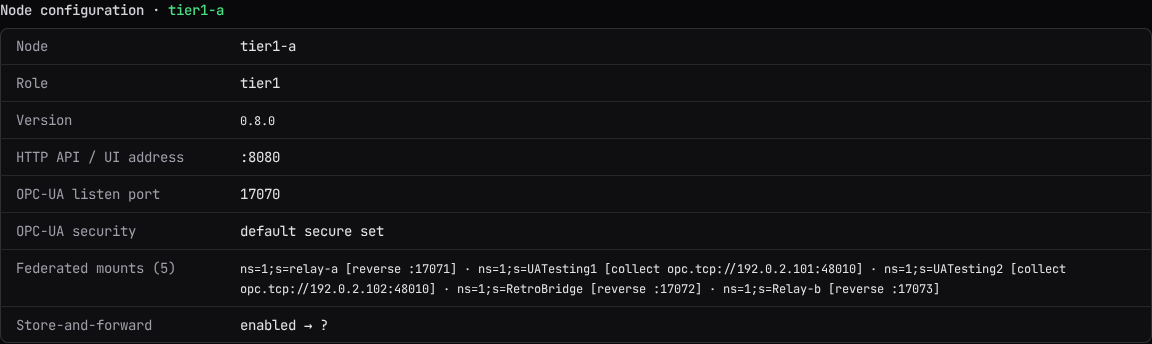
Node configuration
Below the diagram, the "Node configuration" section shows a read-only snapshot of the node selected in the "Configuring" picker: its name, version, HTTP API and UI address, OPC-UA listen port, parent link, OPC-UA security policies and modes, federated mounts, and store-and-forward state. For a downstream node the heading notes "(read over reverse-connect)".
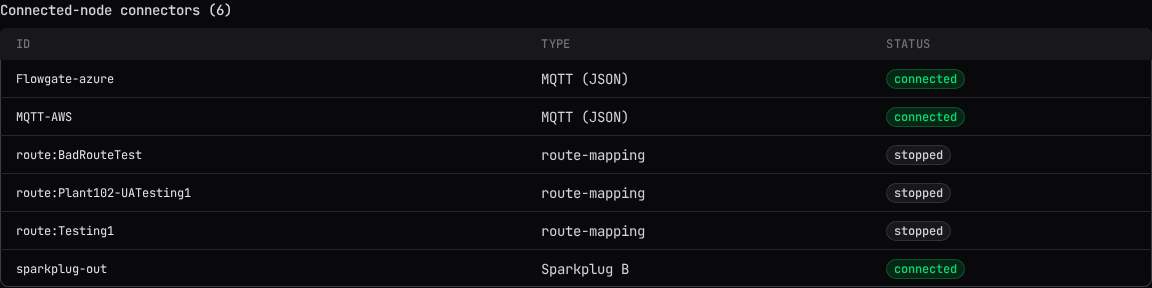
Connected-node connectors
The last section lists the connectors of the node this console is connected to, with each connector's ID, type, and live status. It always describes the connected node, even while you are configuring a downstream node.