Users and Access
Who can see this page
Users & Access manages users, roles, and per-node scope for this node. It is Administrator-only: the sidebar hides it for anyone else, and the API enforces the same restriction.
Reading the user list
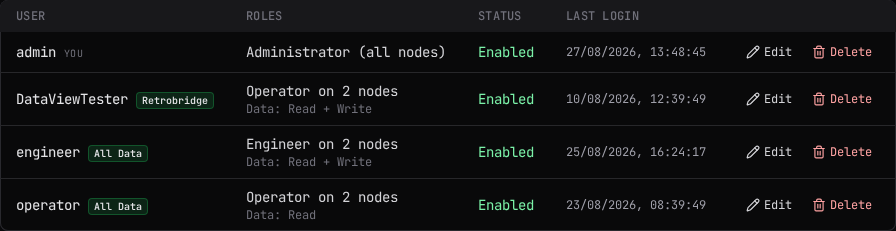
The table lists every user with their User, Roles, Status and Last login. Beside a username you may see:
- Directory: the account signs in through Active Directory rather than a local password.
- service: this is a service account, not a human operator.
- writes unaudited: a service account whose routine OPC-UA writes are excluded from the data-write audit chain while the node's audit scope is filtered. Refused, failed, aborted and clamped writes are always recorded regardless.
- you: the account you are currently signed in as.
- one chip per assigned data view (its name, or its id if the view has none), shown only for a user who is not an Administrator.
The Roles column reads Administrator (all nodes) for an Administrator, a grouped summary such as "Engineer on 2 nodes, Operator on 1 node" for anyone with per-node roles, or a dash if the user has none. A Data: line underneath shows Read or Read + Write when the user has OPC-UA data access.
Creating or adding a user
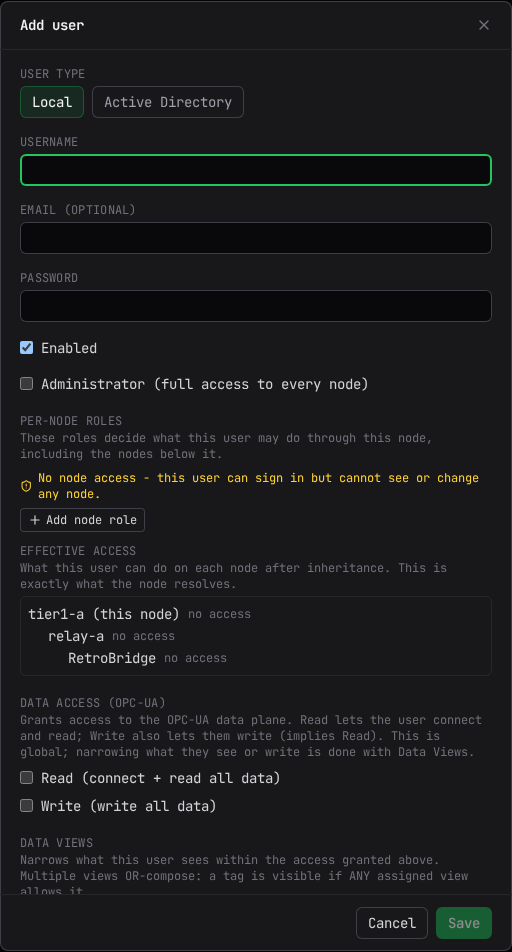
Select Add user. Choose Local or Active Directory:
- Local: enter a Username and a Password of at least 8 characters. Email is optional.
- Active Directory: search the connected node's directory by name or username (minimum 2 characters) and select a result, which fills in the username and email. Directory search always runs on the connected node, even while you are managing a node below it; when managing a downstream node this way, enter the AD username (sAMAccountName) directly instead, exactly as it exists on that node's own directory.
Check Enabled to allow sign-in (on by default). Editing an existing local user shows a New password field that leaves the password unchanged when left blank; an Active Directory user's password is managed in AD and cannot be set here.
Administrator applies to every node
Check Administrator (full access to every node) to grant it. This role cannot be limited to one node from this page: an Administrator always sees all data, and data views do not apply to it. Leave it unchecked to grant Engineer or Operator on specific nodes instead, using the per-node role rows below it.
Select Save (or Create user) to open a confirmation summarizing exactly which role lands on which node, then commit the change.
Per-node roles and Apply to all nodes
When Administrator is not checked, each row under Per-node roles grants Engineer or Operator on one node. These roles decide what the user may do through this node, including the nodes below it. Select Add node role to add a row, choose a node and a role, or remove the row with its X button. A user with no rows can sign in but cannot see or change any node, and the editor says so.
While adding a new user, the node dropdown also offers Apply to all nodes, usable in at most one row. On save it expands into one explicit row per node directly connected to the one you are managing, each carrying the role you chose; the node's own inheritance then covers everything below those. It is not offered when editing an existing user.
On a node that supports deeper role scoping, the node dropdown lists the entire tree beneath the node you are managing, indented to show its structure, so a role can be granted several hops down directly. Otherwise it lists only the nodes directly connected to it.
Below the role rows, Effective access previews exactly what the node will resolve for this user on every node it can reach, after inheritance, including nodes colliding on name (shown with their parent for clarity) and rows marked (inherited).
Data access and data views
Data access (OPC-UA) grants access to the OPC-UA data plane, separately from the roles above: Read lets the user connect and read; Write also lets them write, and implies Read. This access is global; narrowing what a user sees or writes is done with data views. Neither checkbox is offered for an Administrator, who already sees and may write everything.
Data views narrows what the user sees within the access granted above. Check any of the node's defined views; multiple views combine so that a tag is visible if any one of them allows it. With none checked, the editor states: "No views assigned: this user sees all data. Add a view to narrow what they see." See Data Views for how a view's rules are built and evaluated, and Data Views for the page that creates them.
Account type and certificate login
Every user is either Human or Service. A service account represents an automated system, such as a SCADA bridge or a historian loader. It exists for one control: only a service account may be opted out of data-write auditing, using Audit this account's data writes, which stays checked and disabled for a human account. Switching a service account back to human turns auditing on again in the same save.
An existing user with certificates bound for OPC-UA certificate login lists them under Certificate login, each with a button to unbind it (the change applies on Save). New certificate logins are added from Certificate Management → User Certificates, not from here; see Certificate Management.
Deleting a user
Select Delete on a user's row. The confirmation reads: "Delete user <username>? They will no longer be able to sign in. This cannot be undone."
Managing users on another node
Use the node picker in the title bar to manage a node below the one you are connected to; see Getting Started. When the active node is a downstream node, this page reads and writes that node's own user list over the reverse-connect channel, and a banner states so. Remote user management requires an Administrator role on that node and that the node has enabled remote configuration; without both, the banner instead states the view is read-only. Active Directory configuration and directory search always apply to the connected node, never a downstream one.
Active Directory Configuration
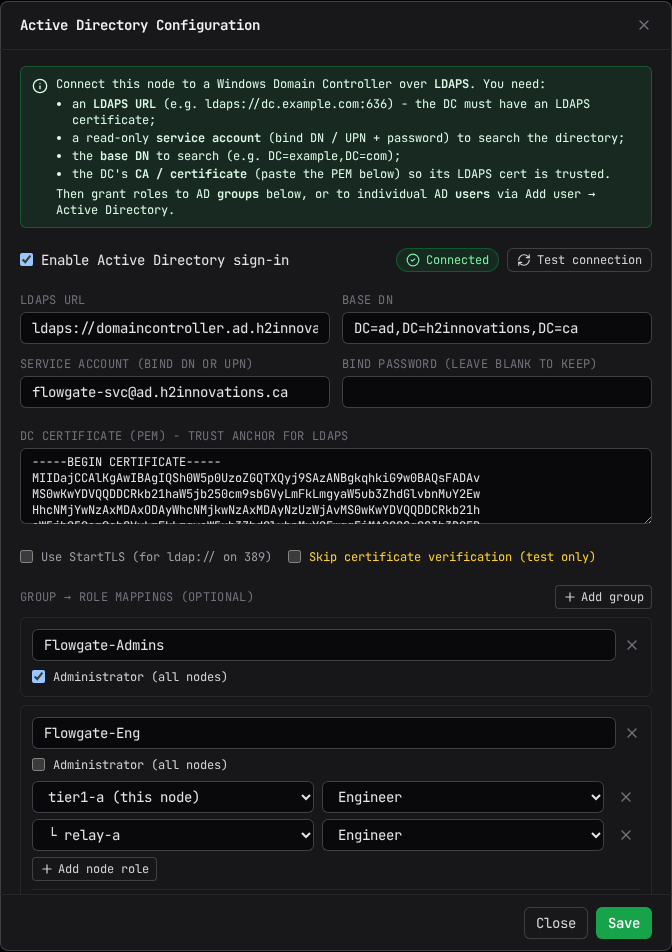
Select Active Directory Configuration (shown only for the connected node) to connect this
node to a Windows domain controller over LDAPS. You will need an LDAPS URL (for example
ldaps://dc.example.com:636), a read-only service account (bind DN or UPN, plus password) to
search the directory, the base DN to search, and the domain controller's CA certificate in PEM
form so its LDAPS certificate is trusted. Test connection checks the service-account bind and
reports Connected or Not connected with the node's own error text.
Below the connection settings, Group → role mappings grants roles to AD groups: add a group by its CN or full DN, then either check Administrator (all nodes) or leave it unchecked and grant Engineer or Operator per node the same way an individual user's roles are granted, plus the same OPC-UA Read / Write data access. A member of a mapped group inherits its roles; you can also grant roles to an individual AD user directly through Add user → Active Directory.
Select Save to apply the configuration live, no restart required. The confirmation warns that getting the service account, LDAPS connection, or a group mapping wrong can lock every directory user out of this node until it is corrected.
Related
- Certificate Management: binding a certificate to a user for OPC-UA certificate login, and the Remote Access Users flow that can also grant a user access to a single node.
- Data Views: how a view's rules narrow what a user sees.
- The Audit Chain: user, role and Active Directory changes are all audited.
- Getting Started: roles, and the node picker in the title bar.